
Let me Tell. That’s what most people think. My laptop works. My internet holds up. I get through my calls. And that’s true – most days, you do.
But think about the last time someone’s audio kept cutting out on a call. You waited. They talked, you heard half a sentence, then silence. Did you focus on what they were saying? Or did you just wait for it to be over? Be honest.
Now flip that. That’s been you. Maybe not often. But once is enough.
32.6 million Americans are working remotely. Those who invested in proper setups, a decent mic, a reliable camera, and a monitor that doesn’t make them squint have their performance ratings are 23% higher. Not because they’re smarter. Because they show up and nothing gets in the way. The room hears them. The screen doesn’t freeze. They’re just… there. Fully.
That’s the gap. Not talent. No effort. Just having the tools that let people see clearly.
I’m not going to list twenty gadgets you’ll never use. But if you’re working remotely and still making do with whatever came in the box, let’s fix that.
Essential Hardware Every Remote Worker Needs ( Best Tech for Remote Working )
-
Computer Specs That Actually Matter for Remote Work
Decision: Buy a laptop if you need portability in hybrid jobs. Buy a Desktop if your priority is raw performance or if you want to use multiple monitors.
Most remote workers prefer desktop peripherals with a power laptop with minimum specs in 2026:
- 16GB RAM (32 GB if development, design, or data work)
- SSD (solid state drive)
- Processor that handles 15 tabs and video calls.
Pro Tip: Invest in good money in processing power; a computer that struggles while loading will absolutely slow your productivity.You can find detailed reviews of these gadgets to ensure you’re getting the best performance for your budget.
-
External Monitor ( The Single Biggest Productivity Upgrade )
I’m telling you, one screen ain’t enough, period.
When I shifted from a 13-inch laptop to a 27-inch external monitor, I stopped missing inline comments in Google Docs, and I realized I was wasting like 50% of my time, which is totally true.
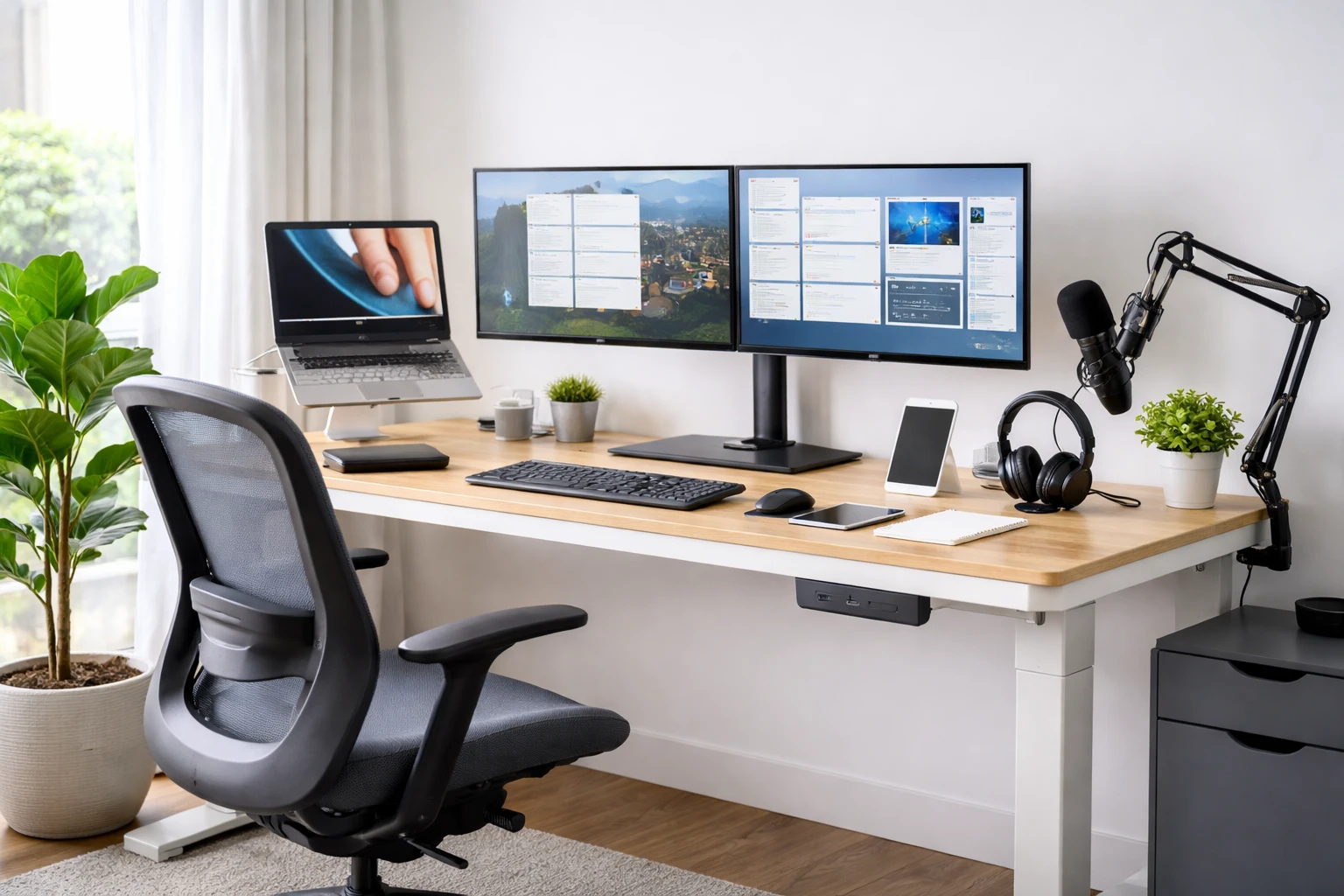
Dual monitors let you present materials during a call, compare spreadsheets side by side, and save time on windows minimize/maximize, that’s part of your job, and ignoring it doesn’t improve anything.
Recommended Setup: 27-inch, 1440p resolution, IPS panel. Monitor placement: Set the screen at eye level.
-
Webcam ( Your Professional First Impression )
Your laptop’s built-in webcam makes your calls look like 2015. Upgrade to Logitech Brio 505 Webcam: 1080p with autofocus, killer low light handling. This is cool tech for home office.
Tip: By improving client impressions and reducing miscommunications, you can easily justify the Logitech Brio 505 Webcam cost in 3 months.
Placement matters: At eye level, centered, so you don’t look like you’re peeking at the camera.
-
Noise-Canceling Headset (or Headphones)
The noise cancellation feature blocks background noise, such as fans, traffic, and dogs barking. Non-negotiable.
Wired vs. Wireless: Wired = better mic quality, zero battery anxiety. Wireless = mobility for standing calls. I use both.
Best for Calls: Headset with a boom mic close to your mouth. For focus: Over-ear noise-canceling headphones (Bose, Sony, or equivalent).
75% of remote workers spend 10+ hours a week in meetings. Audio quality isn’t optional.
-
Ergonomic Keyboard or Mouse
Standard keyboards force your wrists into unnatural positions, causing repetitive strain injuries and slower typing. Ergonomic split keyboards angle your hands naturally.
What to get:
- Keyboard: Ergonomic split design (Microsoft Ergonomic or Logitech Ergo K860).
- Mouse: Vertical mouse (positions your hand in a handshake grip, reduces wrist strain).
- Mouse pad: Get one with wrist support built in.
Ergonomic setups improve focus by 23%. They also reduce sick days by 40%. Just think about it.
-
Laptop Stand or Monitor Arm ( Must Have Tech for Home Office )
Keep your laptop screen at eye level, don’t crane your neck down for 8 hours. “Tech Neck” is real, and physical therapists are making bank from remote workers who ignore ergonomics.
- Laptop Stand: Elevates the screen, pairs with an external keyboard/mouse.
- Monitor Arm: Clamps to your desk, perfect for height/angle adjustments, plus it frees up desk space.
-
Docking Station or USB-C Hub
Docking station consolidates multiple connections into a single cable: power, monitor, external storage, keyboard, and mouse. The docking station saves your time; just plug in the USB-C cable, and you’re ready to roll.
Do you really need it? Yes, if you are using your laptop as a primary machine. No, if you have a desktop.
Connectivity and Security Tools You Can’t Skip ( Tech Tips for Working Remotely )
-
High Speed Router or Mesh Wi-Fi System ( must have tech for home office )
Your router, if provided by your ISP (Internet Provider), is probably trash. If you don’t have Wi-Fi 6 or 6E, or if your house is big? Install the mesh system.
- What do you need? 50 Mbps Download, 25 Mbps Upload, Internet speed for video calls and file sharing.
- If you share GB-sized files? 100+ Mbps Download, 35+ Mbps Upload, Internet speed is recommended.
40% of remote workers complain about unreliable internet.
-
Back-Up Internet Device
A backup internet connection can save you during critical calls when your primary Wi-Fi fails.
Best option: Dedicated wireless Internet device (better performance).
Budget option: Use your phone’s hotspot feature as a secondary backup. It works in a pinch, but drains battery fast and may have slower speeds.
Tip: Test your backup before you actually need it. Know how to activate it quickly during emergencies.
-
VPN ( Non-Negotiable For Home Network Security )
If you’re accessing company systems from home, you need a VPN to encrypt your traffic.
Why does this matter? Your home network is not secure by default. NordVPN, ExpressVPN, or your company’s VPN – just use one.
When remote work is a factor in a breach, costs average $1.07 million higher than office-based breaches. A $200/year VPN subscription is dirt-cheap insurance.
-
Password Manager
Stop using the same password on multiple websites. Use 1Password, Bitwarden, or LastPass for unique passwords for every dedicated site.
Tip: Enable 2FA (Two-factor authentication) wherever available.
Must-Have Software for Remote Professionals ( Cool Tech for Home Office )
90% fully remote U.S. workers use. These tech gadgets for remote work (yes, software counts as gadgets!) will transform how you work:
| Tool | Best For | Free Plan | Key Feature (2026) |
| Zoom | General meetings | Yes (40-min limit) | AI transcription, breakout rooms |
| Microsoft Teams | Microsoft 365 users | Yes | Copilot AI integration, deep Office integration |
| Google Meet | Google Workspace users | Yes | Browser-based, no app needed, real-time translation |
Next-gen features in 2026: AI-powered transcription, real-time language translation, meeting summaries, and immersive 3D environments for virtual headquarters.
13. Team Chat or Collaboration ( Slack, Microsoft Teams )
Pick one platform and stick with it. Jumping between multiple chat tools kills productivity and creates communication chaos.
Slack: Slack is easy to use and keeps conversations organized in separate channels for different topics or projects. It connects with hundreds of other apps and tools you might already use. Small teams can use the free version, which has enough features for basic needs.
Microsoft Teams: Microsoft Teams works best if you already use Microsoft products like Office 365. Everything happens in one place; you can chat, make video calls, and share files without switching between different apps. It’s convenient for teams familiar with Microsoft.
Chanty: Chanty is a secure option that protects your data and privacy. It includes video calling, task management, and file sharing, all built into the platform. You don’t need extra tools because everything is already included in one app.
14. Project Management ( Asana, Notion, Trello ) – Creative Tech Solutions for Home Office
If you’re still tracking tasks in spreadsheets or sticky notes, you’re wasting time. Project management tools help you:
- Asana: Best for teams that need task management, timeline views, and tracking project deliverables.
- Notion: Flexible wiki + database + task manager hybrid. (steep learning curve, but sky-high limits).
- Trello: Uses visual boards with cards that you move across columns to track progress. It’s simple, fast, and popular with many teams.
Liner or Jira is best for Developers. Notion or Monday.com is best for Creatives. Todoist is best for simple task tracking.
15. Backup & Storage Solutions (External Drives + Cloud Storage)
Always back up your work. Everything will be erased from this universe if the hard drive fails.
External Storage Device:
Physical hard drives or SSDs that you keep at your desk provide an extra layer of security. They’re essential for large files, quick access, and offline backups that don’t depend on an internet connection.
Cloud Storage Options:
- Google Drive: If you’re familiar with Google Workspace.
- Dropbox: Best for GB’s files, or auto cross-platform sync.
- OneDrive: If you’re familiar with the Microsoft ecosystem.
Free tiers available to get started.
16. Time Tracking Software ( High-Tech Tools for a More Efficient Home Office )
Most remote workers waste 12+ hours weekly on low-value tasks without realizing it. Time tracking reveals exactly where your hours disappear, so you can cut the waste and focus on what actually moves the needle. These high-tech tools for a more efficient home office are non-negotiable.
Toggl, Clockify, or RescueTime will optimize your schedule. Great for tracking time.
Even if your employer doesn’t require it, tracking your time reveals where your hours actually go. I discovered I was wasting 12 hours weekly in low-value meetings.
17. High Tech Desks for Your Home Office ( The Game Changer )
Look, if you’re serious about the best tech for working remotely, you need to think about your desk itself. High-tech desks for your home office come with built-in wireless charging, USB ports, cable management systems, and even adjustable height features for standing/sitting switches.
Standing desks with programmable height presets are among the best tech gadgets for home office setups in 2026. They reduce back pain, boost energy, and keep you moving throughout the day.
Frequently Asked Questions
1. Is an external monitor really worth the money?
Yes. It’s the single biggest productivity upgrade. Dual screens let you compare docs side-by-side and stop wasting time switching windows.
2. What’s the best webcam for professional video calls?
Logitech Brio 505 – 1080p, autofocus, great in low light. Place it at eye level. Ditch your laptop’s built-in camera.
3. Why do remote workers need a VPN?
Your home network isn’t secure by default. A VPN encrypts your traffic. Remote work breaches cost $1.07 million more than office ones. A $200/year VPN is cheap insurance.
4. Should I get a standing desk?
Yes. Programmable standing desks reduce back pain, boost energy, and keep you moving throughout the day.
5. How much should I spend on my home office setup?
Budget $800-1,500 minimum. Poor setups cost thousands in medical bills and lost productivity. Your setup is a career investment that pays for itself.
Bottom line: Your home office setup directly impacts your career trajectory. High performers don’t succeed because they’re more talented; they succeed because nothing gets in their way. The right monitor means you catch details others miss. A quality mic means clients hear every word clearly. An ergonomic setup means you finish the day energized, not exhausted.